Connecting your broker
Connect cTrader, MT4/5, TradeLocker, Match-Trader, DXtrade, or import a CSV from Quantower, Tradovate, Rithmic, NinjaTrader and more, read-only, in under a minute.
Go to Settings → Account, click Add Account, and pick your broker from the list. Tradestar connects read-only: it can see your trade history, but it can never place a trade or touch your funds.
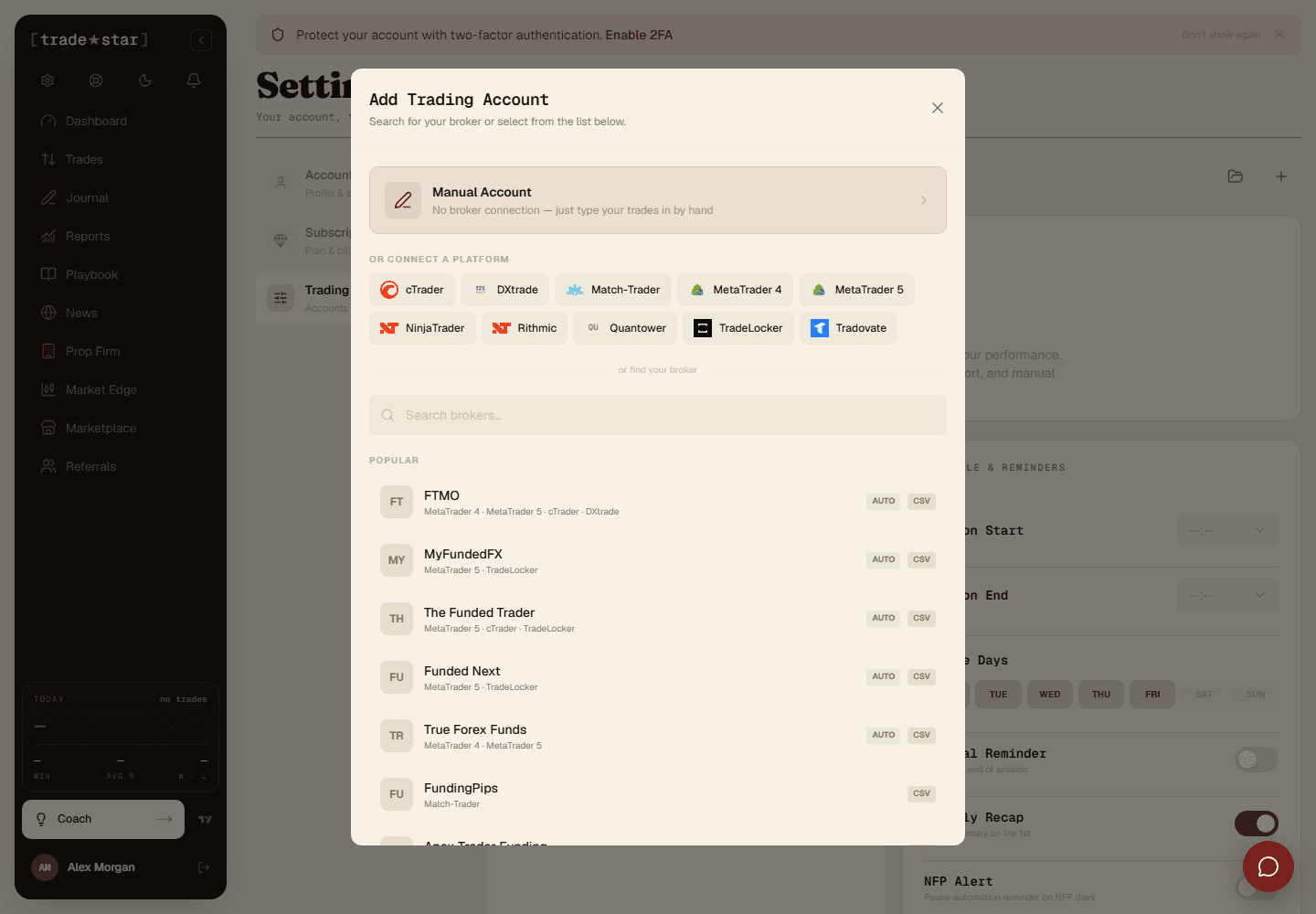
Which broker are you on?
- cTrader — one click, OAuth login, auto-syncs everything in the background from then on.
- MetaTrader 4 or 5 — install Tradestar Desktop first (see below), it finds your MT4/MT5 install automatically and sets up sync in one click.
- TradeLocker — enter your login, Tradestar syncs via the TradeLocker API.
- Match-Trader — email, password, and your broker's URL. This is what FundingPips, E8, and FunderPro run on.
- DXtrade — server URL, username, password.
- Quantower — CSV import, see Quantower import for the export format and gotchas.
- Tradovate — CSV import, see Tradovate import.
- Rithmic (R|Trader) — CSV import, works for Apex, Topstep and other Rithmic prop accounts, see Rithmic import.
- NinjaTrader — CSV import, columns are recognised automatically like any other export.
- Anything else — add a manual account and import trades via CSV, or enter them by hand.
Connecting cTrader
- Click Connect cTrader when adding a new account.
- A popup asks you to authorise Tradestar via OAuth.
- Log in with your cTrader details and allow access.
- Tradestar syncs your trade history automatically from here on. Use the refresh icon next to the account any time you want to sync sooner.
Connecting MT4 or MT5
Install Tradestar Desktop first, it finds your MT4/MT5 installs on its own and sets up sync without you pasting any credentials into MetaTrader or installing an EA.
No desktop app access (say, a VPS with no admin rights)? MT4 can still be configured manually through its built-in FTP settings. MT5 doesn't have a fallback, it needs the desktop app.
No supported broker? Add a manual account
Go to Settings → Account → Add Account and choose Manual. Give it a name, a starting balance, whether it's live or demo, and a currency. From there you add trades by hand from the Trades page, or import a CSV.
Running multiple accounts
Group accounts (e.g. "Prop Firms", "Personal") from the Groups button, then assign each account to a group. Groups let you filter your whole dashboard, trades, and reports down to just that group.